
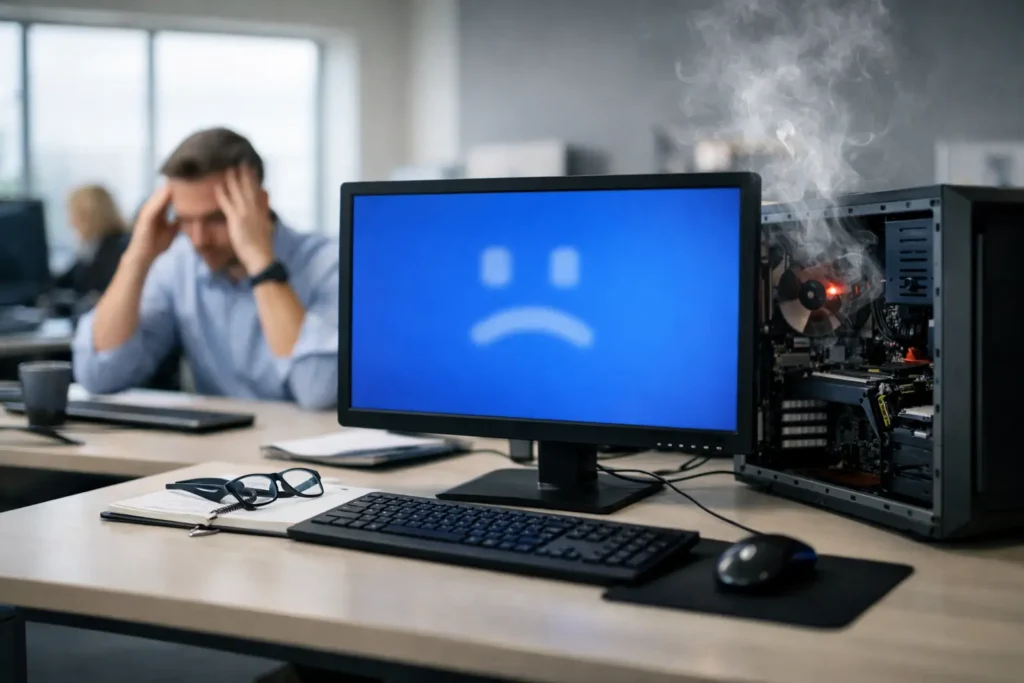
A computer that crashes once may have hit a temporary snag. A computer that crashes every afternoon, whenever an employee opens a certain file, or during a point-of-sale transaction is sending a business warning. The real question is not simply how to restart it. It is what causes recurring computer crashes and whether the same underlying issue could take down more systems, expose data, or interrupt a critical operation.
For a Las Vegas business, repeated crashes can mean lost billable time, missed customer transactions, damaged files, and employees forced to improvise around a system they should be able to trust. The right fix starts with finding the pattern, preserving useful evidence, and addressing the root cause rather than applying another temporary patch.
What Causes Recurring Computer Crashes?
Recurring crashes usually come from one of five areas: failing hardware, unstable software, driver or update conflicts, malware or security issues, and problems outside the computer itself, such as power or network infrastructure. More than one factor can be involved. An aging workstation with a marginal power supply, for example, may appear stable until a new application update places it under heavier load.
The crash behavior matters. A blue-screen error, sudden shutdown, frozen screen, reboot loop, application-only failure, or repeated loss of network access each points the investigation in a different direction. Recording exactly what the user was doing when the crash occurred often saves hours of guesswork.
Hardware failures and heat buildup
Hardware problems are a common reason a workstation becomes unreliable over time. A failing solid-state drive or hard drive can corrupt files, slow the computer dramatically, and cause applications or Windows to crash. Faulty memory can create random errors that seem unrelated: a spreadsheet closes unexpectedly one day, then the system restarts the next.
Heat is another frequent culprit, particularly in busy offices, retail settings, warehouses, and home offices where computers collect dust or operate in enclosed spaces. Fans, vents, and heat sinks cannot do their job when airflow is restricted. The computer may shut down or restart to protect itself, usually when handling heavier tasks such as accounting software, video calls, large reports, or security scans.
Power issues deserve the same attention. Loose cords, worn surge protectors, failing battery backups, and inconsistent electrical supply can cause a machine to restart without warning. If several devices are affected at the same location, the problem may be the circuit, power distribution, or uninterruptible power supply rather than each individual computer.
Software conflicts, damaged files, and limited resources
A computer can crash even when its physical components are healthy. Business applications, browser extensions, remote-access tools, print utilities, cloud-sync platforms, and antivirus software all operate alongside the operating system. When two programs compete for the same system resources or do not work well together after an update, instability follows.
Damaged Windows files can also produce recurring blue screens, error messages, or programs that refuse to launch. This may happen after an interrupted update, an improper shutdown, a failed drive, or an unsuccessful software installation. Reinstalling the application may help in some cases, but it will not solve an operating-system problem underneath it.
Resource limits are more straightforward but still disruptive. A computer with too little available storage, memory, or processing capacity can become unstable under normal business workloads. This is especially common when a device that was purchased for basic email and documents is later expected to run multiple browser tabs, video meetings, cloud applications, accounting software, and endpoint security tools at once. The appropriate solution may be cleanup or memory upgrades, but sometimes replacement is the more cost-effective and reliable choice.
Driver, firmware, and update conflicts
Drivers allow Windows to communicate with hardware such as printers, graphics cards, Wi-Fi adapters, docks, scanners, and point-of-sale peripherals. A bad, outdated, or incompatible driver can trigger crashes that appear random to the user. In reality, they may happen only when the employee prints, connects to a conference-room display, uses Wi-Fi, or launches a graphics-heavy application.
Operating system updates can expose these conflicts. Updates are necessary for security and reliability, but they should be monitored and managed carefully in a business environment. Delaying updates indefinitely creates security risk. Installing every update across every machine without oversight can create a different kind of risk when an older driver, line-of-business application, or specialized device is not ready.
Firmware matters too. Network equipment, storage devices, docks, and even some laptops rely on firmware that can affect stability. A structured IT process evaluates compatibility, tests where appropriate, and documents changes so a new crash can be connected to a recent update instead of treated as a mystery.
Malware, ransomware activity, and unwanted software
Malware does not always announce itself with a ransom note. It can consume system resources, interfere with security tools, redirect browsers, damage files, install unwanted applications, or create recurring crashes. A machine that suddenly slows down, crashes during startup, or behaves differently after a suspicious email attachment or download should be treated as a security concern until proven otherwise.
The risk is higher when employees use local administrator accounts, systems are not consistently patched, or endpoint protection is unmanaged. A quick cleanup may remove visible symptoms while leaving the original exposure unaddressed. Businesses should also determine whether credentials, client data, or shared drives were accessed before assuming the incident was limited to one computer.
This is why reliable support includes more than virus removal. It includes endpoint monitoring, patch management, security alerts, protected backups, and a documented response process. The goal is to prevent a recurring crash from becoming a recurring security incident.
How to Find the Cause Without Making the Problem Worse
Start by protecting work and preserving evidence. If the computer is still usable, save open files and confirm that important data is backed up. Take a photo or screenshot of blue-screen messages, error codes, and warnings. Note the date, time, application in use, connected devices, and whether the system restarted, froze, or shut down completely.
Avoid repeatedly forcing the machine off unless it is completely unresponsive. Frequent hard shutdowns can damage open files and make a storage problem worse. Also avoid downloading multiple “PC repair” utilities or registry cleaners. These tools can introduce unwanted software, erase diagnostic information, or mask the issue long enough for it to return at the worst possible moment.
A sensible first review checks available disk space, recent software or hardware changes, Windows update history, security alerts, and system event logs. Hardware diagnostics can test memory, drive health, temperature, and power behavior. If the crash occurs only with one application, an IT professional should still verify whether the application is the cause or simply the first program to reveal a deeper memory, storage, or driver problem.
When a Crash Is a Business Continuity Issue
A single device can usually be repaired on a reasonable schedule if users have a safe workaround. The situation becomes more urgent when crashes affect a shared workstation, accounting system, server, point-of-sale terminal, warehouse device, or computer holding the only copy of important files. It is also urgent when the incident follows a phishing email, unexplained account activity, encrypted files, or disabled security software.
Repeated crashes across multiple computers are rarely a coincidence. They can point to a bad update, failing network equipment, electrical instability, malware, or a shared application problem. Treating each machine separately wastes time and can leave the real cause in place.
For small businesses without an internal IT department, proactive monitoring changes the equation. Instead of waiting for an employee to report that a computer has failed again, managed endpoint tools can flag low disk space, failing drives, missing patches, repeated error events, and security concerns before they stop work. System Integrators of Nevada provides that local, security-first support alongside repair and recovery when an immediate issue needs attention.
Preventing the Next Round of Crashes
Prevention is not complicated, but it does require consistency. Keep operating systems, business applications, drivers, and security tools managed and current. Use quality surge protection or battery backup where power loss would disrupt operations. Replace aging computers before they become the weak link in a critical workflow, and verify backups through periodic recovery testing rather than assuming they are usable.
Most importantly, establish one clear path for employees to report trouble early. A computer that starts freezing once a day is not an inconvenience to ignore. It is an opportunity to protect productivity, data, and customer service before the next crash chooses the timing for you.